






































USB drive security in business: block, encrypt and control removable media
USB sticks and external drives: risks (malware, data leaks), usage policy, blocking with Intune or Kaspersky, BitLocker To Go encryption. A guide for SMBs in Morocco.
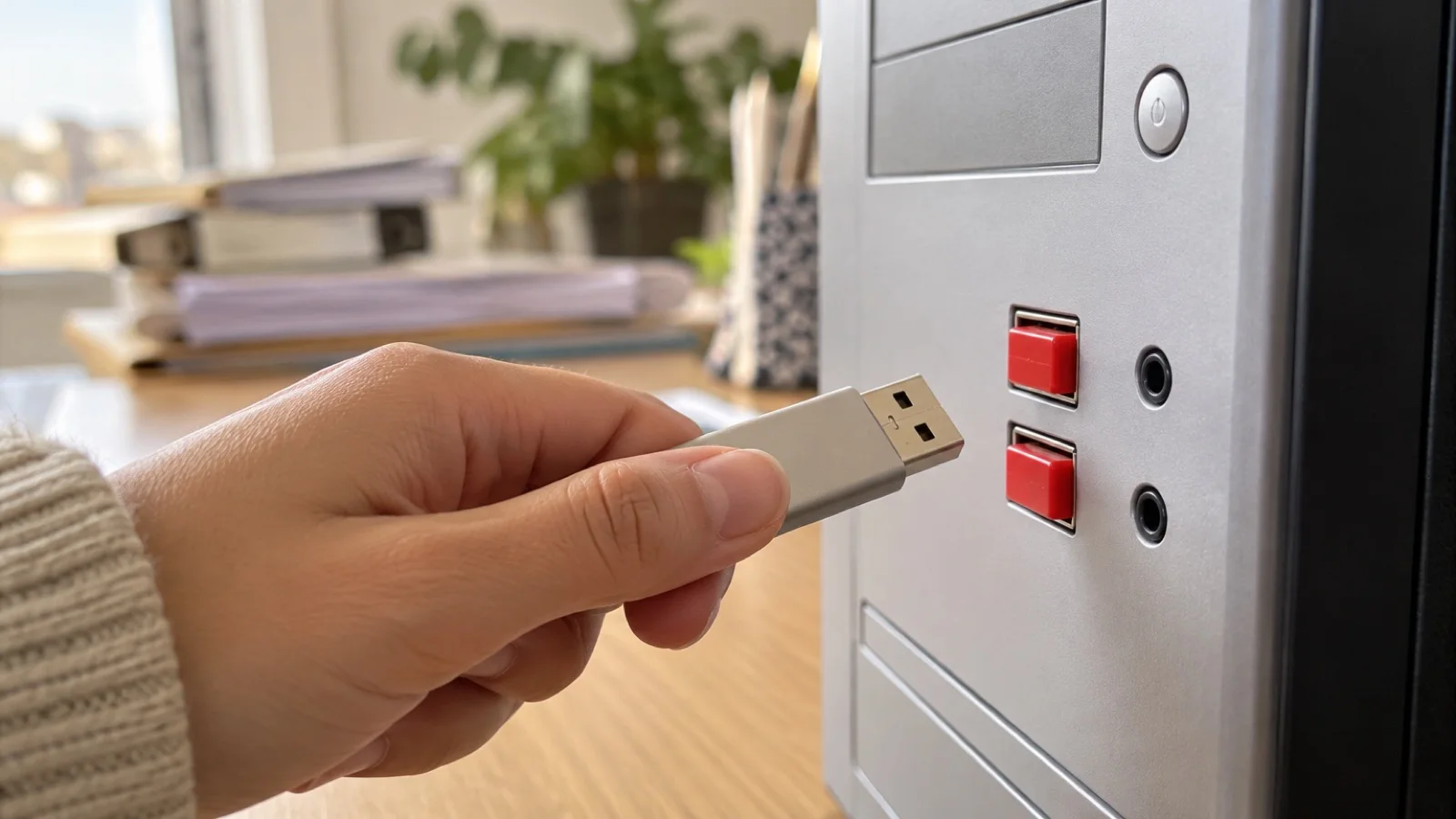
The short answer: a USB drive is both an entry point for malware and an exit point for your data. A sound policy comes down to five measures: block removable storage by default, allow only company media, encrypt it, scan every device that comes in, and log what is copied. These measures are deployed from a central console (Microsoft Intune, Kaspersky Security Center), not PC by PC, and they block neither keyboards, mice nor phone charging.
This guide is for Moroccan SMBs that want to regain control over USB sticks, external hard drives, SD cards and smartphones plugged into their PCs. The technical capabilities quoted come from Microsoft and Kaspersky official documentation, and from recommendations published by ANSSI, the French national cybersecurity agency, widely used as a reference by French-speaking businesses.
Why USB drives are still a real risk in 2026
You might think the topic is outdated in the cloud era. It is not, for three reasons.
Malware coming in. Some worms still spread through USB drives. In 2022 Microsoft documented the Raspberry Robin worm, spread through USB drives containing a Windows shortcut disguised as a folder, and linked it to an ecosystem of attacks preparing ransomware. A single click on that fake folder is enough to compromise the PC. A drive used on a home computer, at a print shop or in an internet café can bring this kind of threat back into the company.
Data going out. Copying a customer file, an accounting database or drawings onto a drive takes seconds and leaves no trace if nothing is logged. Whether through carelessness or a departing employee acting in bad faith, leaks often go this way.
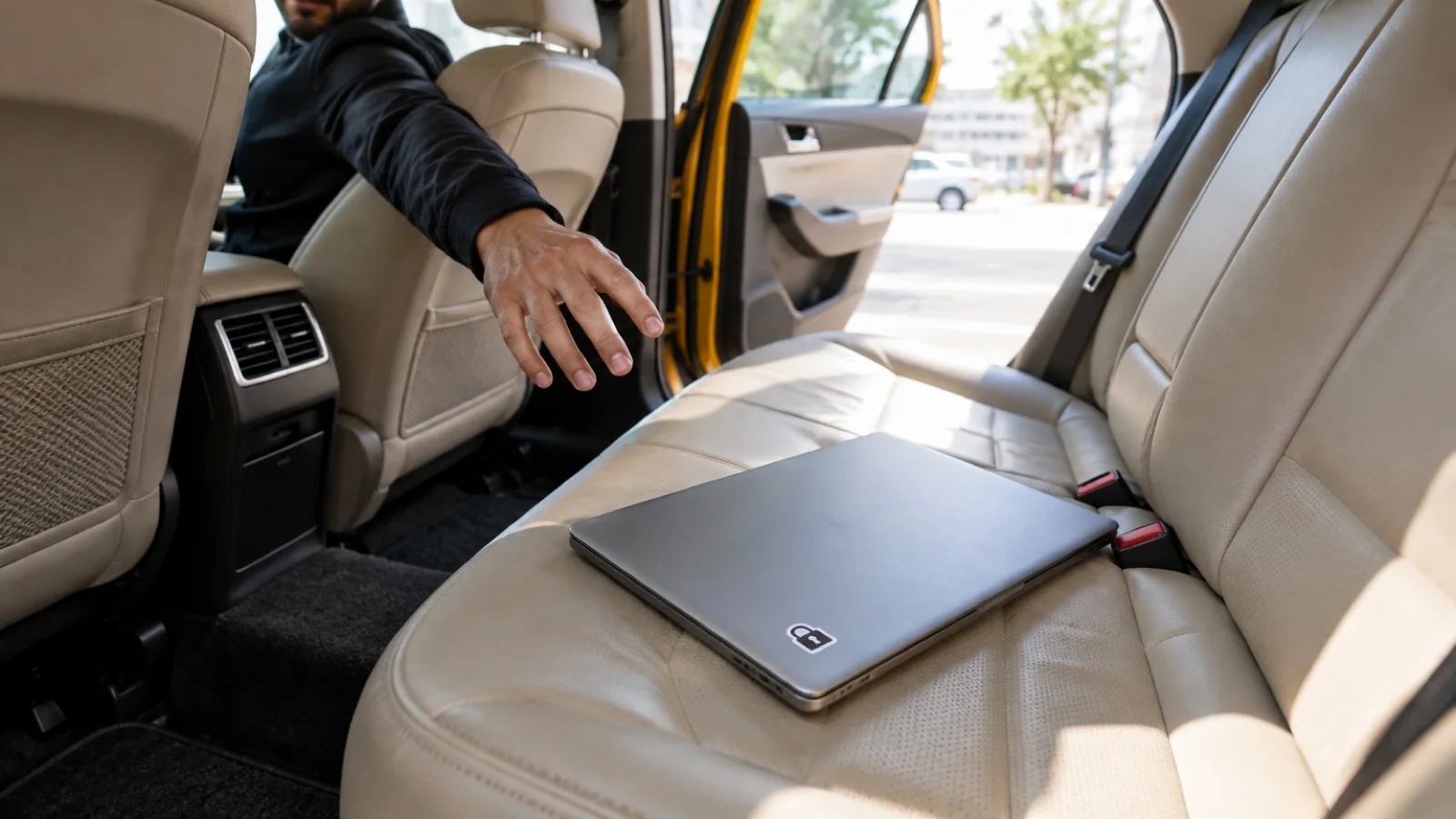
Loss and theft. An unencrypted drive left in a taxi or a meeting room exposes its contents to whoever picks it up. If it holds personal data, the company must be able to show it was protecting that data, as required by Morocco’s data protection law 09-08.
On top of that come rigged devices that present themselves to the computer as a keyboard and type commands in place of the user. One more reason never to plug in a drive that was found or received without explanation.
The five measures that make a real USB policy
| Measure | What it prevents | Typical tool |
|---|---|---|
| Block removable storage by default | Malware coming in, data going out on PCs that do not need it | Intune (Defender device control), Kaspersky Device Control, Group Policy |
| Allow a list of company media | Use of personal or unknown drives | Exceptions by device ID |
| Encrypt authorised media | Leaks when a drive is lost or stolen | BitLocker To Go, hardware-encrypted drives |
| Scan every incoming device | Spread of a worm or a booby-trapped file | Up-to-date antivirus or EDR, automatic scan on connection |
| Log access and copies | Undetected leaks, lack of evidence | Device control logs, Microsoft Purview for DLP |
ANSSI takes the same line: its guides recommend either banning removable media or allowing only media whose integrity and security are established, along with encrypting authorised media and disabling automatic execution.
Step 1: write the rule before configuring it
Technical blocking without a written rule creates friction and workarounds. Before touching the PCs, agree with management on:
- Who needs removable media and why: accounting for exchanges with an external accountant, sales staff at trade shows, technicians updating equipment, a department receiving files from partners.
- Which media are allowed: only drives bought and identified by the company, never personal ones.
- Which data may be copied to them, and which never may.
- Which alternative is offered for everyday exchanges: OneDrive or SharePoint sharing with expiring links, Google Drive, secure transfer.
- What to do with a found or received drive: hand it to IT, never plug it in.
These rules naturally belong in the IT charter and in the employee awareness programme.
Step 2: block by default, without blocking the mouse
With Microsoft Intune and Defender for Endpoint
In the Intune admin center, device control is configured under Endpoint security > Attack surface reduction. According to Microsoft documentation, it can restrict access to removable media, Windows portable devices (smartphones in file-transfer mode), CD/DVDs and printers, and it is disabled by default: everything is allowed until a policy is applied.
The recommended approach:
- Create reusable settings describing device groups: “all removable storage”, “company drives” (by hardware ID or serial number).
- Create a policy that denies read and write on removable storage, with an exception for the “company drives” group.
- Start in audit mode, which records access without blocking it, for a few weeks.
- Switch to blocking once legitimate exceptions have been identified.
For PCs not yet managed by Intune, Group Policy (“Removable Storage Access”) allows simpler blocking, without serial-number exceptions. We cover PC management with Intune in Microsoft Intune for SMBs.
With Kaspersky Endpoint Security
The Device Control component of Kaspersky Endpoint Security, managed from Kaspersky Security Center, controls access by device type and by connection bus (including USB). According to Kaspersky documentation, it allows everything by default; you then define blocking rules and a trusted devices list, added by device ID, to which specified users have full access. It is a good option for companies already equipped, which we support as a Kaspersky partner. Choosing the edition is covered in Kaspersky for business: which edition to choose.
Step 3: encrypt authorised drives with BitLocker To Go
BitLocker To Go encrypts a USB drive or external disk from Windows Pro or Enterprise. The setting that makes the difference is “Deny write access to removable drives not protected by BitLocker” (in Intune: block write access to removable data drives not protected by BitLocker). Once enabled, any unencrypted drive is mounted read-only: users must encrypt it before they can write to it.
Three precautions:
- Back up recovery keys to Microsoft Entra ID or Active Directory, otherwise a drive whose password is forgotten becomes unreadable.
- Choose a strong password to unlock the drive, different from the Windows password.
- Check the receiving computers: a BitLocker drive is readable on Windows, but not natively everywhere. For exchanges with a partner, cloud sharing is often simpler.
Encrypting the PCs’ own disks is covered in our guide BitLocker: encrypting business PCs.
Step 4: scan everything that comes in
Even an authorised drive can carry a booby-trapped file. An up-to-date antivirus or EDR must automatically scan every connected device, and automatic execution must stay disabled. For media coming from outside (supplier, customer, trade show), some companies dedicate an isolated PC, sometimes called a kiosk or “clean station”, to scanning them before any use. The difference between a traditional antivirus and behavioural detection is explained in EDR or antivirus for an SMB.
Step 5: log and control copies
Device control records connections and allowed or denied access. To go further and prevent a file from being copied based on its sensitivity (a document labelled “confidential”, payment card data), Microsoft points to endpoint data loss prevention (Microsoft Purview DLP), available depending on your Microsoft 365 licences. These logs are invaluable when an employee leaves on bad terms or during a post-incident investigation.
The mistakes we see most often
- Abrupt blocking with no audit phase: accounting can no longer send its monthly file, and a blanket exception is granted in a panic.
- Exceptions per user instead of per device: the authorised person can then plug in any drive, including personal ones.
- Encrypted drives with no backup of recovery keys.
- Forgotten smartphones: blocking removable storage does not necessarily cover phones in file-transfer mode, which fall under Windows portable devices.
- No cloud alternative offered, which pushes staff towards their personal email.
- Policy never reviewed: exceptions pile up and nobody remembers why they exist.
Implementation checklist
- List actual removable media usage, department by department.
- Write the rule and add it to the IT charter.
- Buy and inventory company drives (ID, serial number, holder).
- Enable device control in audit mode, then in blocking mode.
- Require BitLocker To Go on authorised media and back up recovery keys.
- Check that the antivirus or EDR scans devices on connection.
- Offer controlled cloud sharing for everyday exchanges.
- Review exceptions every quarter.
How we do it
We start with a free audit of your PCs and usage, to find out who uses removable media and why. We then write the usage rule with you, and deploy device control from Intune or the Kaspersky console, in audit mode first. We set up BitLocker To Go encryption, recovery key backup and the replacement cloud sharing. PCs are then monitored 24/7, and a critical incident is handled in under 15 minutes.
USB control is just one building block of a broader business cybersecurity in Morocco approach, which also covers ransomware protection (see 7 measures against ransomware) and an immutable 3-2-1 backup. Request your free initial audit: we reply within 24 business hours.
Frequently asked questions
Should USB drives be banned entirely in a business?
The safest approach is to block removable storage by default, then allow only company-issued, encrypted and identified drives for the people who genuinely need them. A total ban with no alternative pushes staff towards workarounds, so offer controlled cloud sharing (OneDrive, SharePoint, Google Drive) for everyday exchanges.
Can USB drives be blocked without blocking the mouse, keyboard or phone charging?
Yes. Microsoft Defender for Endpoint device control, managed through Intune, and Kaspersky Endpoint Security device control work by device type: you block removable storage or Windows portable devices without affecting keyboards and mice. Phones can still charge when file access is blocked.
How do you encrypt a company USB drive on Windows?
With BitLocker To Go, built into the Pro and Enterprise editions of Windows. A Group Policy or Intune profile can make any drive not protected by BitLocker read-only, so users must encrypt the drive before writing to it. The recovery key is backed up to Microsoft Entra ID or Active Directory.
Is a lost USB drive with customer data a legal issue in Morocco?
If the drive holds personal data, Law 09-08 requires the data controller to take appropriate technical and organisational measures to protect it against loss and unauthorised access. An encrypted drive greatly reduces the risk; an unencrypted lost drive exposes the company. Our article on Law 09-08 details these obligations.
How long does it take to set up USB control?
It depends on the number of PCs, the tools already in place and the business exceptions to identify. We always recommend an audit phase, where usage is only logged, before switching to blocking: it avoids blocking a legitimate use on the day of the switch.
About the editorial team
ALLSAFE SOLUTIONS
Network, security and cloud engineers
Written by the engineering team at ALLSAFE SOLUTIONS, a managed IT provider founded in Casablanca by network, security and cloud engineers. Our articles draw on the projects we deliver for clients in Morocco and abroad.
LinkedIn