






































BitLocker for business: encrypting Windows PCs without ever losing the recovery keys
BitLocker for business: required editions, TPM or TPM + PIN, automatic device encryption, recovery keys in Entra ID or Active Directory, step-by-step rollout.
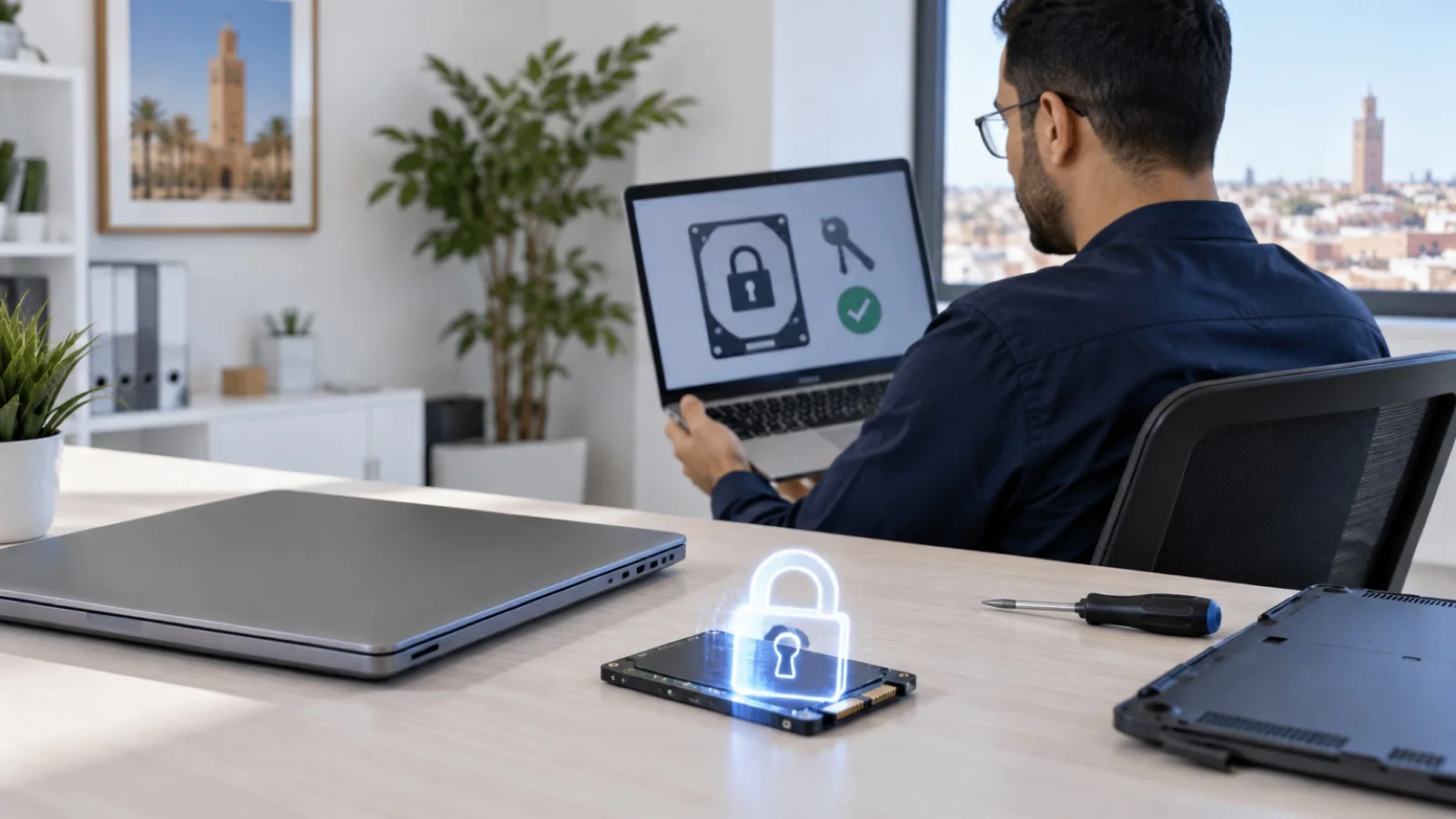
The short answer: BitLocker is the drive encryption built into Windows. It makes data unreadable to anyone who gets hold of a stolen laptop, a drive removed from a PC or a computer sent for disposal. In a business, it runs on Windows Pro, Enterprise or Education, relies on the TPM chip found in recent computers, and is deployed from Intune or through Group Policy. The real risk is not the encryption itself but the recovery key: if it is not backed up centrally, a simple BIOS setting change can leave a PC and its data inaccessible.
This guide explains what BitLocker protects, which settings to choose and how to roll it out without bad surprises. It is based on Microsoft’s official documentation. For a firm, a clinic or any business handling personal data, encrypting laptops is also part of the security measures expected under Morocco’s Law 09-08 and the CNDP.
What BitLocker protects, and what it does not
Microsoft describes BitLocker as protection against theft or exposure of data from lost, stolen or improperly decommissioned devices. Without encryption, booting the laptop from a USB stick or connecting its drive to another computer is enough to read every file, without knowing the Windows password.
| Situation | Without BitLocker | With BitLocker |
|---|---|---|
| Laptop stolen from a car or a café | Data readable by removing the drive | Drive unreadable without the original TPM or the recovery key |
| Drive removed from a PC or server | Readable on any computer | Unreadable |
| PC resold, donated or recycled | Data recoverable if the drive is not wiped properly | Data inaccessible |
| Ransomware or a remote attacker | No difference | No difference: the drive is unlocked while Windows is running |
The last row is essential: BitLocker protects data when the device is off or out of your control. It replaces neither EDR, nor patching, nor MFA, nor backups.
Prerequisites: Windows edition and TPM
According to Microsoft, BitLocker can be enabled on Windows Pro, Enterprise, Pro Education and Education. Windows Home does not have it, but offers device encryption, a simplified version covered below.
On the hardware side:
- The TPM (Trusted Platform Module) holds the encryption key and checks that the boot chain was not tampered with while the PC was off. BitLocker needs at least TPM 1.2 for this check; Windows 11 requires TPM 2.0 in any case.
- Native UEFI mode is mandatory with TPM 2.0: Legacy and CSM modes must be disabled, and Microsoft recommends enabling Secure Boot. A PC installed in Legacy mode is converted with the
mbr2gpt.exetool before changing the BIOS mode. - Partitioning: a small unencrypted system partition holds the boot files. Windows creates it automatically when installed on a new PC.
Without a TPM, BitLocker can still encrypt the system drive with a startup key on a USB stick, but without the boot integrity check. For PCs that are too old, replacement becomes the question, as explained in renewing your business IT fleet.
TPM-only or TPM with PIN: which mode to choose
Microsoft describes four ways to unlock a BitLocker-protected system drive:
| Mode | How it works | For whom |
|---|---|---|
| TPM-only (default) | Transparent unlock if the boot chain has not changed | Most desktops and laptops |
| TPM + PIN | The user enters a code before Windows starts; the TPM blocks repeated attempts | Laptops of executives, administrators and exposed mobile users |
| TPM + startup key | Part of the key is on a USB stick inserted at startup | Special cases, impractical day to day |
| TPM + startup key + PIN | Both factors are required | Highly sensitive devices |
Microsoft states that TPM-only mode addresses an opportunistic attacker without specialist tools. Against a skilled attacker with lengthy physical access, Microsoft recommends TPM with PIN, and disabling sleep in favour of hibernate: in sleep, the drive stays unlocked; after hibernate, the PIN is requested again. This is also Microsoft’s recommendation for admin workstations.
The PIN has a cost: it gets in the way of remote restarts and automatic overnight updates, and a user who forgets it has to call support. We therefore reserve it for the profiles that justify it.
Automatic device encryption
On compatible devices, Windows turns on device encryption by itself after installation. Microsoft notes that since Windows 11 version 24H2, some hardware prerequisites have been removed, making many more devices eligible. The behaviour depends on the account type:
- PC joined to Microsoft Entra ID: the recovery key is backed up to Entra ID when the user signs in.
- PC joined to an Active Directory domain: the key is backed up to the directory when the PC joins the domain, if the corresponding policy is enabled.
- PC with a personal Microsoft account: the key is saved to that personal account, out of the company’s reach.
- PC with local accounts only: Microsoft states that the device remains unprotected, even though data is encrypted, until protection is finalised.
The practical consequence: a laptop bought in a shop and set up with an employee’s personal Microsoft account may be encrypted… with a key the company does not hold. When the employee leaves or the PC fails, the data can be lost. Hence the value of joining every PC to Entra ID or the domain as soon as it is commissioned.
Recovery keys: where projects fail
BitLocker asks for the recovery key, a 48-digit sequence, when it detects a change in the boot chain: a BIOS update or change, a replaced motherboard, a reset TPM, a modified boot configuration. Without this key, the data is lost. The rules we apply:
- Enforced automatic backup to Entra ID or Active Directory, through the “Choose how BitLocker-protected operating system drives can be recovered” policy, with the option that prevents BitLocker from being enabled until the key is backed up.
- Verification that each PC has its key in the console before handing it to the user.
- Restricted access to key retrieval, limited to administrators and support.
- Suspending BitLocker before a firmware update, with automatic resumption at the next restart.
- Server keys also stored offline, in a password vault, with the recovery documentation.
Microsoft also points out that the encryption method is chosen before encrypting: device encryption uses XTS-AES 128-bit by default, and switching to another method requires decrypting and re-encrypting the drive.
Rolling out BitLocker across a fleet: the method
With Intune (Entra-joined PCs)
This is the simplest route for an SMB on Microsoft 365 Business Premium, which includes Intune. A disk encryption policy enforces BitLocker, the unlock mode and key backup to Entra ID, and can encrypt silently without user interaction. The compliance policy then checks that each PC is encrypted, and conditional access can block Microsoft 365 access from a non-compliant PC. The full approach is described in our Microsoft Intune guide for SMBs.
With Group Policy (Active Directory domain)
For a fleet joined to an on-premises domain, BitLocker settings are found in the administrative templates under “Windows Components > BitLocker Drive Encryption”. They define the encryption method, startup authentication and, above all, key backup to the directory. These settings are part of Active Directory hardening.
The order we follow
- Inventory: Windows edition, TPM presence and version, UEFI mode, current encryption status of each PC.
- Policy: encryption method, TPM-only or TPM + PIN by profile, mandatory key backup.
- Pilot on a few representative PCs, checking that the keys appear in the console.
- Rollout by group, tracking compliance.
- Written support procedure: how to retrieve a key, who can access it, what to do in case of loss or theft.
What about USB sticks and external drives?
BitLocker To Go encrypts removable media. A policy can block writing to an unencrypted USB stick, which stops copies of customer files from travelling around in clear text. Automatic device encryption does not cover external media.
The most common mistakes
- Leaving recovery keys in employees’ personal Microsoft accounts.
- Enabling BitLocker without checking that the key reached the console.
- Updating the BIOS without suspending BitLocker, and discovering the recovery screen at the user’s desk.
- Believing an encrypted PC is protected against ransomware.
- Forgetting servers and external backup drives.
- Buying laptops with Windows Home for business use.
How we support businesses
We start with the free initial audit: PC inventory, Windows editions, TPM, encryption status and where recovery keys are stored. We then deploy BitLocker through Intune or Group Policy, as a Microsoft partner, with a documented and tested recovery procedure. We also supply suitable PCs and Windows Pro licences, with or without installation.
As part of our business cybersecurity services in Morocco, encryption compliance is tracked continuously, 24/7 monitoring watches the PCs, and a critical incident is handled in under 15 minutes. Request your free initial audit: we reply within 24 business hours.
Frequently asked questions
Is BitLocker available on Windows 11 Home?
No, full BitLocker management requires Windows Pro, Enterprise or Education. Windows Home offers “device encryption”, a simplified version that turns on automatically on compatible devices and backs up the key to the user’s Microsoft account. For a managed business fleet, we recommend Windows Pro.
Where is the BitLocker recovery key stored?
Depending on the configuration: in Microsoft Entra ID for an Entra-joined PC, in Active Directory for a domain-joined PC, or in the personal Microsoft account for an unmanaged PC. In a business, backup to Entra ID or Active Directory must be enforced by policy so that IT can always retrieve the key.
Do we need a startup PIN with BitLocker?
Not always. Microsoft states that TPM-only mode, the default, protects against an opportunistic attacker. For devices exposed to a targeted attack with lengthy physical access, such as executives’ or administrators’ laptops, Microsoft recommends adding a PIN to the TPM and using hibernate rather than sleep.
Why does BitLocker sometimes ask for the recovery key at startup?
Because it detected a change in the boot chain: a BIOS or UEFI update or setting change, a replaced motherboard or TPM, or a modified boot configuration. Before a firmware update, BitLocker is suspended for the duration of the operation to avoid this prompt.
Does BitLocker encryption slow PCs down?
On the recent SSD-equipped PCs we deploy, users generally notice no difference in daily use. Initial encryption runs in the background, and Windows may delay it if the user is working or the laptop is on battery.
About the editorial team
ALLSAFE SOLUTIONS
Network, security and cloud engineers
Written by the engineering team at ALLSAFE SOLUTIONS, a managed IT provider founded in Casablanca by network, security and cloud engineers. Our articles draw on the projects we deliver for clients in Morocco and abroad.
LinkedIn