








































Microsoft Intune for SMBs: managing and securing Windows PCs (Autopilot, compliance, BitLocker, updates)
Microsoft Intune for SMBs: licensing, Autopilot enrollment, compliance and Conditional Access, BitLocker, LAPS, Autopatch updates and apps. The step-by-step guide.
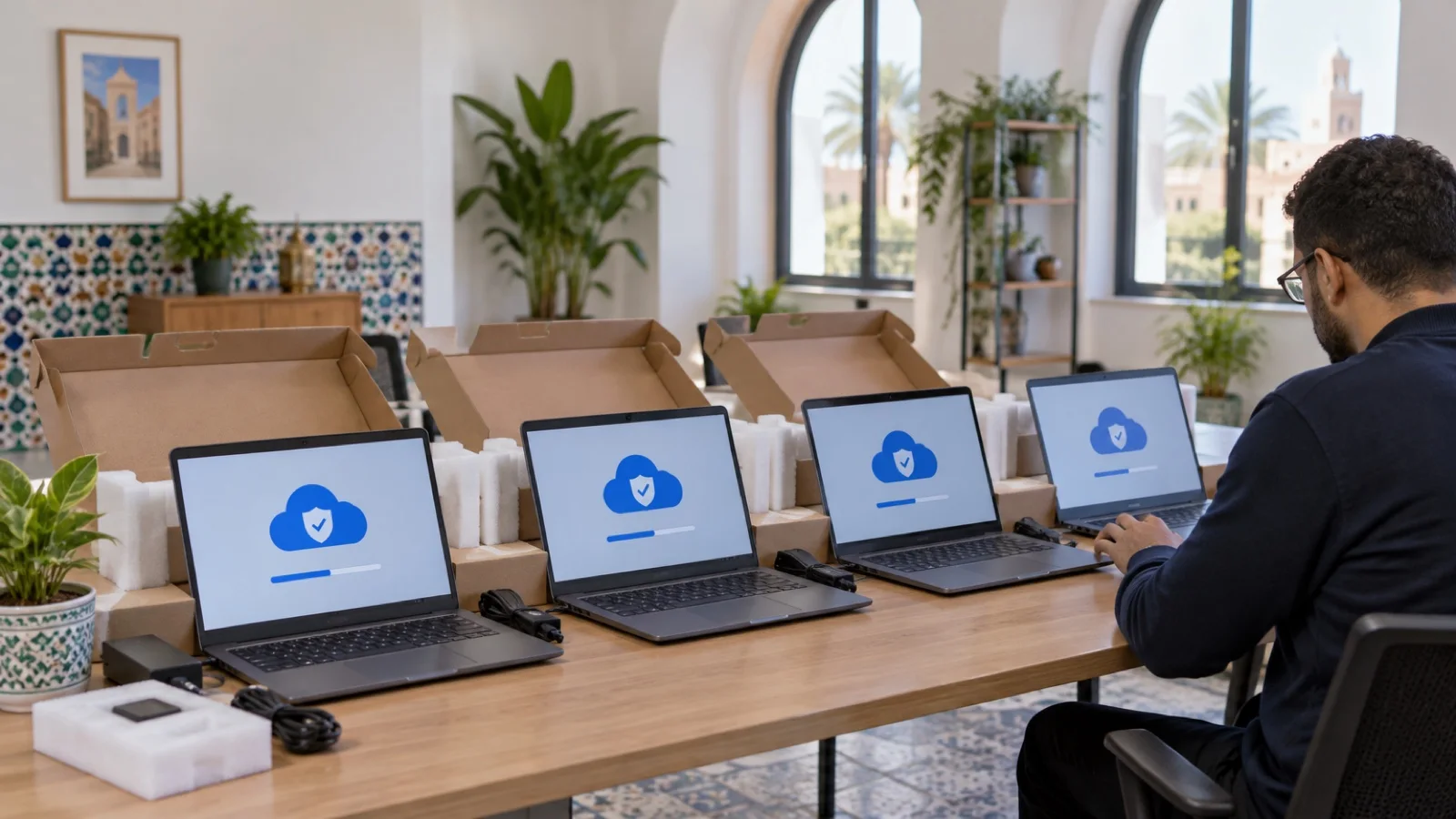
The short answer: Microsoft Intune is Microsoft’s cloud service for managing and securing your Windows PCs (and your mobile devices) with no server or local domain. For an SMB, it is very often already paid for: Intune Plan 1 is included in Microsoft 365 Business Premium. Rollout follows a clear order: enroll the PCs (Windows Autopilot for new ones), define a compliance policy linked to Conditional Access, encrypt with BitLocker, manage Microsoft Defender, protect the local administrator account with LAPS, then automate Windows updates and app deployment. This guide follows that order and relies only on Microsoft’s official documentation.
At ALLSAFE SOLUTIONS, we are a Microsoft partner in Casablanca. We deploy Intune for SMBs in Morocco alongside Microsoft 365, and supply licences and PCs, with or without installation.
What Intune changes for an SMB
Without a management tool, every PC is set up by hand, updates depend on each user’s goodwill, and nobody really knows whether disks are encrypted or the antivirus is running. Active Directory Group Policy (GPO) used to fill that need, but only for PCs connected to the company network.
Intune does the same job from the cloud. A PC working remotely, travelling or in a branch office receives its settings as soon as it has internet access. In practice, Intune lets you:
| Need | What Intune does |
|---|---|
| Prepare a new PC | Windows Autopilot configures the device at the user’s first sign-in |
| Know the state of the fleet | Hardware and software inventory, compliance status of each PC |
| Block a risky device | Compliance policy + Conditional Access: no Microsoft 365 access without a compliant device |
| Protect data | BitLocker encryption enforced, recovery keys backed up to Microsoft Entra ID |
| Secure the device | Defender Antivirus, firewall, attack surface reduction, security baselines |
| Control admin rights | Unique, rotated local administrator password (Windows LAPS) |
| Keep Windows up to date | Update rings and Windows Autopatch |
| Install software | Microsoft 365 Apps, Microsoft Store apps, Win32 apps |
| Respond to loss or theft | Lock, remote wipe, Autopilot reset |
Licensing: what you need
Microsoft defines three levels: Intune Plan 1 (the base service), Intune Plan 2 and the Microsoft Intune Suite, which add advanced features such as Remote Help. To manage and secure Windows PCs in an SMB, Plan 1 is enough.
Most businesses get Intune through a Microsoft 365 plan rather than as a standalone licence:
| Plan | Intune Plan 1 | Microsoft Entra ID P1 (Conditional Access) |
|---|---|---|
| Microsoft 365 Business Basic | No | No |
| Microsoft 365 Business Standard | No | No |
| Microsoft 365 Business Premium | Yes | Yes |
| Microsoft 365 E3 / E5 | Yes | Yes |
| Intune Plan 1 standalone | Yes | No (add it) |
Microsoft describes Business Premium as designed for SMBs with up to 300 users. It also includes Microsoft Defender for Business. To compare the three Business editions, see our guide Microsoft 365 Business Basic, Standard or Premium.
Important: an Intune licence must be assigned to every user whose devices are managed. Administrators, on recent tenants, can use the console without a licence.
Step 1: choose how PCs are joined
Before enrolling the first PC, decide how it will be tied to the company identity:
- Microsoft Entra join: the PC is joined directly to the cloud. This is the mode Microsoft recommends for new devices, and the simplest for an SMB without a server.
- Microsoft Entra hybrid join: the PC stays a member of an on-premises Active Directory and is also known to Microsoft Entra ID. Useful for a transition, but Microsoft advises against it for new deployments, including through Autopilot.
- Registered personal device: for BYOD, with deliberately limited management. Windows Autopatch, for example, rejects personal devices.
On the operating system side, Intune manages Windows 11 Home, Pro, Enterprise and Education. But Autopilot, Autopatch and BitLocker require at least Windows Pro. Windows 10 reached end of support on 14 October 2025: Intune still accepts it, with no guarantee that everything works. Replacing older PCs is covered in our guide to renewing the business IT fleet.
Step 2: enroll PCs, with Autopilot for new ones
Three methods cover nearly every case:
- Windows Autopilot, for new or reset PCs. The device is registered in advance in the Autopilot service (by the manufacturer, by the reseller or by importing its hardware hash). The user unboxes the computer, connects to the internet, enters their work account, and the PC configures itself: join, apps, security settings. No more “master image” to maintain.
- Manual join from Windows, for a PC already in use: Settings, Accounts, Access work or school. With automatic enrollment turned on, the PC joins Intune right away.
- Group Policy enrollment, for PCs already in an Active Directory during a gradual migration.
Autopilot requires automatic MDM enrollment to be enabled in Microsoft Entra ID and users to be allowed to join devices. Also make sure internet access does not require prior authentication: a captive portal stops the process.
Step 3: compliance and Conditional Access
This is the step that turns Intune into a security tool. A compliance policy defines what an acceptable PC looks like, for example:
- BitLocker encryption on;
- Secure Boot and boot integrity;
- firewall and antivirus active and up to date;
- minimum Windows version;
- risk level reported by Microsoft Defender below the chosen threshold.
On its own, compliance only reports. Linked to Microsoft Entra ID Conditional Access (P1 licence), it enforces: a non-compliant PC can no longer open Outlook, Teams or SharePoint until it is fixed. Combined with multi-factor authentication rolled out smoothly, it is the core of a Zero Trust approach for SMBs.
Roll the policy out first in report-only mode, on a pilot group, with a grace period: you will see which PCs would fail before blocking anyone.
Step 4: secure the PCs (BitLocker, Defender, LAPS)
Intune’s Endpoint security section brings the essential settings together:
| Policy | What to configure |
|---|---|
| Disk encryption | BitLocker on the system drive, recovery key backed up to Microsoft Entra ID |
| Antivirus | Microsoft Defender Antivirus, real-time and cloud protection, tamper protection |
| Firewall | Windows Firewall on for every network profile |
| Attack surface reduction | Rules blocking typical behaviour of malicious macros and scripts |
| Account protection | Windows LAPS for the local administrator account |
| Endpoint detection and response | Integration with Microsoft Defender for Business |
Windows LAPS deserves special attention. Every Windows PC has a local administrator account that cannot be deleted. If it has the same password everywhere, an attacker who gets it from one PC can open them all. With Intune, LAPS enforces a unique password per PC, backs it up encrypted in Microsoft Entra ID and rotates it automatically. LAPS must first be enabled in the Microsoft Entra device settings.
Finally, remove administrator rights from everyday users: it is one of the most effective measures against ransomware. For choosing between antivirus and EDR, see our comparison EDR vs antivirus.
Step 5: Windows updates with Autopatch
Intune manages updates through rings: a small pilot group gets patches first, and the rest of the fleet follows after a delay. Going further, Windows Autopatch is available with Microsoft 365 Business Premium. It organises PCs into groups, handles quality updates, feature updates, drivers and firmware, and provides per-device status reports.
Conditions to know, according to Microsoft: PCs must be corporate-owned, enrolled in Intune, running Windows Pro or higher, and have communicated with Intune recently. Autopatch support requests to Microsoft are not included with Business Premium.
Step 6: deploy applications
Intune installs three families of apps:
- Microsoft 365 Apps (Word, Excel, Outlook, Teams), on the update channel you choose;
- Microsoft Store apps;
- classic Win32 apps (accounting software, VPN client, PDF reader), packaged in the Intune format.
Each app can be required (installed automatically) or available in the Company Portal, where users install it themselves without admin rights. Remember the VPN client: a PC managed by Intune is often a mobile PC, to be protected with a business VPN, IPsec or ZTNA.
Intune, Kaspersky or another tool?
Intune is the natural choice when the business already runs Microsoft 365 Business Premium: identity, compliance and data access are managed in one place. If you already use another security console, such as Kaspersky Next, Intune can deploy it to the PCs and check that it is present, without duplication. For smartphones, the same principles apply, detailed in our guide to MDM for business smartphones.
Mistakes we fix
- Business Standard licences on a project that assumes Intune and Conditional Access.
- Compliance policy without Conditional Access: non-compliant PCs are flagged but keep their access.
- Conditional Access switched on all at once, with no report-only mode or pilot group, locking out management on a Monday morning.
- BitLocker keys not backed up to Microsoft Entra ID: a locked PC becomes unrecoverable.
- Same local administrator password across the fleet, for lack of LAPS.
- Users who are administrators of their own PC out of habit.
- Windows Home PCs bought outside business channels, incompatible with Autopilot.
- No pilot ring: a problematic update hits the whole fleet at once.
Getting-started checklist
- Check licences: Business Premium, or Intune Plan 1 + Entra ID P1, assigned to every user.
- Enable automatic MDM enrollment and set up company branding in Microsoft Entra ID.
- Choose the join mode (Microsoft Entra join for new PCs).
- Create an Autopilot profile and register new PCs.
- Write the compliance policy and test it in report-only mode.
- Turn on BitLocker, Defender, the firewall and LAPS.
- Create update rings or Autopatch groups.
- Package and deploy business applications.
- Turn on Conditional Access, starting with a pilot group.
- Document the procedures for loss, theft and employee departure.
Before all that, secure Microsoft 365 with our 10 essential settings: Intune relies on a well-configured tenant.
How we work
We start with an inventory: current licences, Windows editions, age of the PCs, business applications, presence of an Active Directory. We then propose a rollout in waves: pilot group, then departments, with a user guide for the first Autopilot sign-in. We configure compliance, Conditional Access, BitLocker, Defender, LAPS, updates and applications, then provide ongoing follow-up: 24/7 monitoring, a reply within 24 business hours and critical incidents handled in under 15 minutes.
Discover our managed Microsoft 365 and Azure cloud offer and our managed IT services in Morocco, then request your free initial audit: we reply within 24 business hours.
Sources: Microsoft Learn documentation (Microsoft Intune licensing, operating systems supported by Intune, Windows Autopilot requirements, Windows Autopatch prerequisites, Windows LAPS with Intune, Microsoft 365 Business Premium overview).
Frequently asked questions
Is Microsoft Intune included in Microsoft 365?
Not in every plan. For SMBs, Intune Plan 1 is included in Microsoft 365 Business Premium (designed for up to 300 users), together with Microsoft Entra ID P1, which Conditional Access requires. It is also included in Microsoft 365 E3 and E5, or available on its own. Business Basic and Business Standard do not include it.
Do we need an Active Directory server to use Intune?
No. Intune is a cloud service: PCs are joined to Microsoft Entra ID and receive their settings over the internet, in the office or when working remotely. Microsoft actually recommends Microsoft Entra join for new devices rather than hybrid join. An existing Active Directory can coexist during the transition.
Does Intune work with Windows Home?
Intune accepts enrollment of Windows 11 Home, but several key features require at least Windows Pro: Windows Autopilot, Windows Autopatch and BitLocker encryption. For a business fleet, we recommend PCs delivered with Windows 11 Pro.
What happens if a laptop is stolen?
From the Intune console, the administrator can trigger a remote wipe that runs as soon as the device reconnects, and revoke the user’s sessions. If the disk is encrypted with BitLocker, enforced by Intune, the data stays unreadable even offline. The device also drops out of the compliant device list, and therefore loses access to Microsoft 365.
Does Intune replace our antivirus or EDR?
Intune is not an antivirus: it configures and monitors protection. It drives Microsoft Defender Antivirus and the integration with Microsoft Defender for Business, included in Business Premium. If you already use another product, such as Kaspersky or WatchGuard EPDR, Intune can deploy it and check that it is running, without replacing it.
About the editorial team
ALLSAFE SOLUTIONS
Network, security and cloud engineers
Written by the engineering team at ALLSAFE SOLUTIONS, a managed IT provider founded in Casablanca by network, security and cloud engineers. Our articles draw on the projects we deliver for clients in Morocco and abroad.
LinkedIn