
























Yeastar Linkus app: mobile, desktop and web clients for your phone system
Yeastar Linkus app: features of the mobile, desktop, web and Chrome clients, remote access without port forwarding, push notifications, rollout and security.

The short answer: Yeastar Linkus is the app that turns a smartphone, a computer or a browser into an extension of a Yeastar P-Series phone system. Employees keep their extension number, voicemail, presence status, team chat and call history, in the office or on the road. To make this work outside the premises without exposing the phone system to the internet, Yeastar provides the Remote Access Service and a dedicated domain name (FQDN). Rollout is done by email, with a single-use login QR code.
At ALLSAFE SOLUTIONS, a Yeastar certified partner in Casablanca, we deploy Linkus with every P-Series system. Our guide Yeastar P-Series: which model to choose introduced the app in a few lines; here we detail what it actually does, how to open it remotely the right way, and the settings that make the difference. All information comes from yeastar.com and help.yeastar.com.
The four Linkus clients
| Client | Platforms | Typical use |
|---|---|---|
| Linkus Mobile | iOS and Android | Sales staff, technicians, managers on the move |
| Linkus Desktop | Windows and macOS | Workstations, remote work, controlling an IP phone |
| Linkus Web Client | Browser (Chrome, Edge, Opera), no installation | Shared workstations, quick access, call centre console |
| Google Chrome extension | Chrome browser | Click to call from web pages and business tools |
Yeastar states that the web client is exclusively supported on P-Series systems. One account can be signed in on several devices at once if the administrator allows concurrent registrations: according to Yeastar’s security guide, up to three logins per Linkus client type and up to five IP phones per extension.
What Linkus does day to day
The features Yeastar highlights fall into four groups.
Calls. Audio and video calls, transfer, hold, mute, on-demand recording, missed calls and call history, voicemail and recordings playback. Each user sets their own forwarding rules and ring strategy. Function keys provide speed dial, intercom and colleague monitoring (BLF).
Continuity across devices. A live call can move between computer, mobile and IP phone without interruption. The desktop client can also control an IP phone (CTI mode): you click on screen and talk on the handset.
Collaboration. Presence indicators, one-to-one and group chat with file sharing, audio conferences and video meetings with screen sharing, a unified company directory with personal and shared contacts.
Business tools. Click to call from Outlook and call logs in Outlook, contact sync from the CRM or helpdesk tool, embedding in Microsoft Teams, a call centre console in the web client to follow queues and agents. These integrations depend on the phone system’s feature plan; we detail them in Yeastar CRM and Microsoft Teams integration.
Some features, such as omnichannel messaging (WhatsApp, SMS) or video conferencing, belong to the Enterprise or Ultimate plans. Before promising a feature to users, check that the purchased plan covers it.
Which client for which profile?
Giving everyone every client makes no sense. We start from roles and from how each person actually works.
| Profile | What we deploy | Why |
|---|---|---|
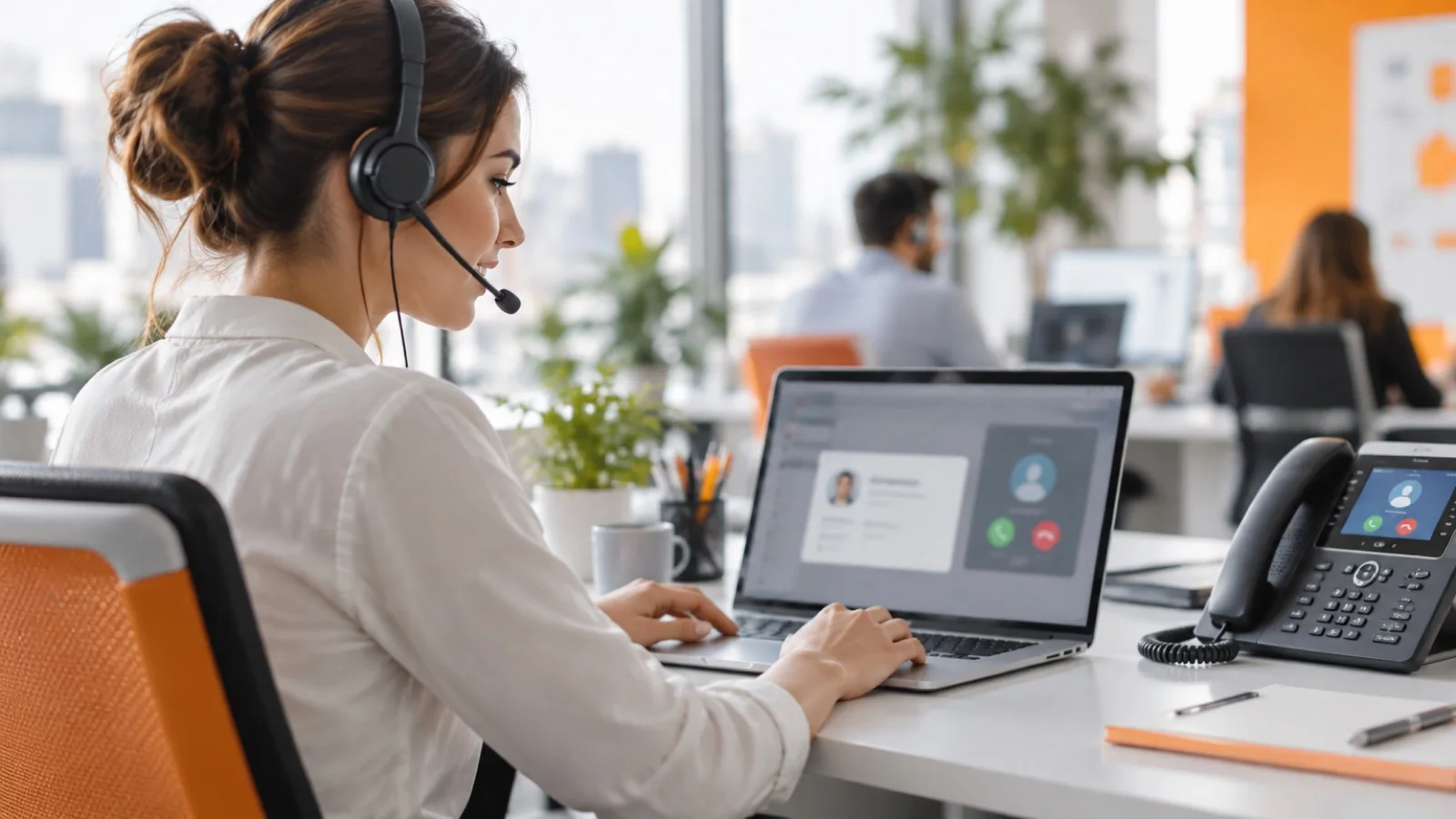
| Reception, switchboard operator | IP phone and desktop client in CTI mode | A handset remains the most comfortable for high call volumes; the screen is used to transfer and see colleagues’ presence |
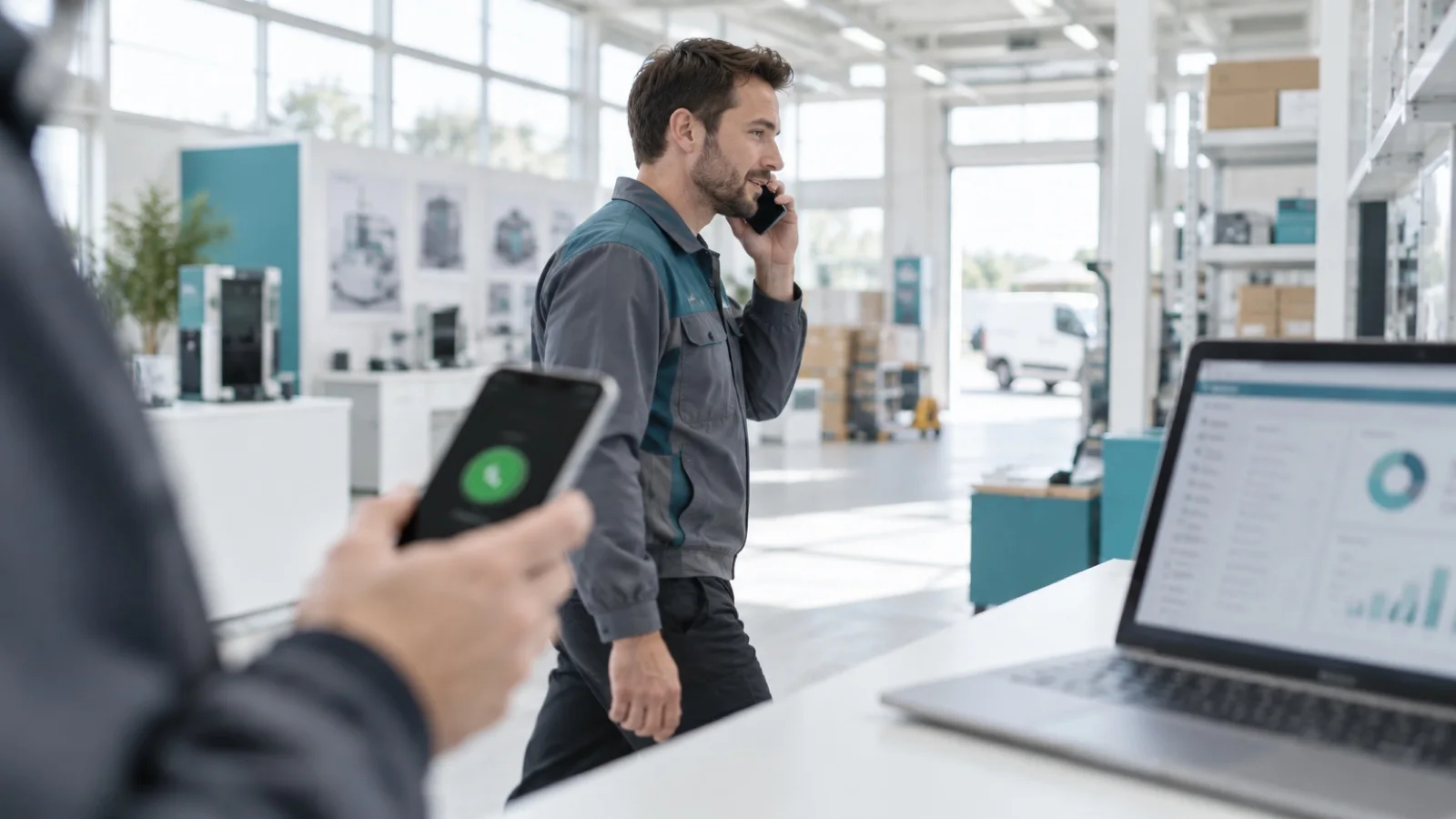
| Field sales | Linkus Mobile | They call with the company number, not their personal one, and the history stays in the phone system |
| Remote worker | Linkus Desktop with headset, mobile as backup | The office extension follows the employee home, with no extra hardware |
| Call centre agent | Web client and call centre console | Queue and agent monitoring in the browser, no installation |
| Manager | Mobile and desktop | Visible availability, switching devices mid-call |
| Field technician | Linkus Mobile | Reachable on the department number without sharing a personal number |
An often-underestimated benefit: when a salesperson leaves, customers know a number that belongs to the company. You simply disable or reassign the extension, without losing contacts or history.
Remote access: Remote Access Service and Yeastar FQDN
This is the point that decides the security of the whole project. Yeastar offers two routes.
| Method | How it works | Our view |
|---|---|---|
| Remote Access Service (RAS) | Yeastar subscription service; mobile connects with the system’s serial number, desktop and web clients via a Yeastar-supplied FQDN | The method we deploy: no port forwarding, automatic NAT configuration |
| Manual configuration | Port forwarding, NAT, public IP address, Linkus server configuration | Avoid: Yeastar warns that weak network protection exposes you to SIP attacks and that misconfiguration causes one-way audio |
On the Appliance edition, Yeastar’s documentation states that Remote Access Service comes with the Standard, Enterprise or Ultimate plan. Setup is done in the system portal (System > Network > Yeastar FQDN): you pick a Yeastar domain and a host name. Note that Yeastar states the FQDN cannot be changed once saved: choose a neutral, durable name.
Two settings complete remote access. First, by default all extension accounts can reach the web client via the FQDN: we limit this to the accounts that need it. Second, an IP address restriction can be applied separately to the web client and to the desktop and mobile clients. For the rest of the system’s security, see our guide how to secure a Yeastar P-Series.
Push notifications: why a mobile may not ring
To save battery, Linkus Mobile stops refreshing its registration when the app goes to the background. The extension may then show as offline on the phone system. Calls still arrive through push notifications: Apple Push Notification service and CallKit on iOS, Firebase Cloud Messaging on Android. The phone system notifies the push service, the phone rings, and when the call is answered the app reconnects and receives it.
The practical consequence: if push does not get through, the mobile does not ring. Yeastar’s published checklist is as follows:
- the phone system’s DNS server resolves Apple’s and Google’s push domains;
- the phone system reaches these services over TCP 443, without firewall blocking;
- the phone system’s clock is correct;
- the system’s country filtering does not block the region of the DNS server in use;
- the phone can reach the phone system once the call is answered.
On the user side, push can be switched on or off in the mobile app, and the web client lets each user choose, status by status, whether to accept notifications; by default they are received in every status except “Do Not Disturb”. On iOS, with a Focus mode active, incoming calls arrive as silent notifications. Finally, Yeastar recommends keeping both the app and the phone system up to date, as several fixes for background call reception have been released over time.
Rolling out Linkus to a team
A good rollout takes a few steps.
- Enable Linkus for the relevant extensions, client by client: not everyone needs mobile or the web client.
- Define rights. Menu visibility and operation permissions limit what each user sees and changes. Built-in roles (administrator, operator, employee) and custom roles complete the framework.
- Send the welcome email. The phone system sends each user an email with a QR code or login link. According to Yeastar, these links are encrypted and can only be used once. Users never have to type the server address.
- Enable two-factor authentication. The administrator can enforce it for all extensions; otherwise each user can enable it in the desktop and web clients. Sign-in through Microsoft 365, Google Workspace or Red Hat SSO is also possible.
- Train with a short demo: transfer, device switching, presence, voicemail. That is what drives adoption.
Checklist before rolling out Linkus
- Feature plan checked for the features promised (remote access, omnichannel messaging, video, integrations).
- Remote Access Service active and FQDN chosen with a durable name.
- List of users allowed remote access, with IP restrictions where possible.
- Country filtering on the phone system compatible with travel destinations and push services.
- Two-factor authentication enforced or, failing that, enabled by each user.
- Smartphones and computers up to date, compatible headsets for remote work.
- Office Wi-Fi sized for voice, voice VLAN on the wired network.
- Welcome emails sent to the right addresses, short training scheduled.
Mistakes we fix
- An open SIP port forward “to make mobile work”, instead of Remote Access Service.
- Mobiles that do not ring because the system’s country filtering or DNS blocks push services.
- An FQDN named after a former provider or a test project, impossible to change afterwards.
- The web client open to every account, when only a few users work remotely.
- Credentials sent over instant messaging, instead of the single-use welcome email.
- No two-factor authentication on accounts reachable from the internet.
- Saturated Wi-Fi or an active SIP ALG degrading voice quality, see the 10 mistakes that ruin call quality.
How we work
We start from your use cases: who works remotely, who travels, who needs a desk phone, which business tools must talk to the phone system. We then check that the feature plan covers these needs, enable Remote Access Service with an FQDN chosen with you, restrict remote access, enforce two-factor authentication, and roll Linkus out in waves with short training. Call quality and system availability are then monitored 24/7, and a critical incident is handled in under 15 minutes.
To go further, read our guide cloud or on-premises phone system, the comparison 3CX, Yeastar or Teams Phone and our IP telephony in Morocco offering. Want to equip your teams with Linkus? Request your free phone system audit: we reply within 24 business hours.
Frequently asked questions
Which devices does Yeastar Linkus run on?
Linkus is available as a mobile app for iOS and Android, a desktop app for Windows and macOS, a web client in the browser (Chrome, Edge or Opera) and a Google Chrome extension. The web client is only supported on Yeastar P-Series phone systems.
Do I need to open firewall ports to use Linkus remotely?
No, if you use Yeastar’s Remote Access Service. The mobile client connects with the phone system’s serial number, the desktop and web clients with a Yeastar-supplied domain name (FQDN). Without this service, you have to set up port forwarding, NAT and a public IP, which Yeastar advises against.
Does Linkus ring when the app is closed on the phone?
Yes, through push notifications: Apple Push Notification on iOS, Firebase Cloud Messaging on Android. The phone system must be able to reach these services over the internet; country filtering or a DNS problem can stop calls from arriving.
How do you roll out Linkus to a whole team?
The administrator enables Linkus for the relevant extensions and the phone system sends a welcome email containing a single-use QR code or login link. Rights can be limited by menu and by setting, and two-factor authentication can be enforced for all users.
Does Linkus replace desk phones?
It can replace them for mobile or remote staff, or complement them: a call can move between IP phone, computer and mobile without being dropped, and the desktop client can control an IP phone on the desk. For a high-volume reception desk, we usually keep a desk phone.
About the editorial team
ALLSAFE SOLUTIONS
Network, security and cloud engineers
Written by the engineering team at ALLSAFE SOLUTIONS, a managed IT provider founded in Casablanca by network, security and cloud engineers. Our articles draw on the projects we deliver for clients in Morocco and abroad.
LinkedIn