







































Business printer security: protecting multifunction printers, drivers and documents
Business printer and MFP security: admin password, firmware, protocols to disable, badge release printing, Windows Print Spooler, secure disk wipe before recycling.
The short answer: a multifunction printer is not a simple peripheral, it is a networked computer. It has an operating system, a web admin server, often a disk or memory that keeps documents, and it knows sensitive credentials: the email account for scan-to-email, access to file shares, a link to the directory. Securing it comes down to a few concrete measures: admin password changed, firmware up to date, unused protocols disabled, network isolation, prints released by badge or code, Windows spooler hardened, disk wiped before recycling.
This guide covers those measures in the order we apply them for the SMBs, firms and clinics we support in Morocco. It relies on Microsoft documentation for the Windows side and on the hardening guides published by manufacturers.
Why printers are a blind spot
Printers are installed once, often by the lessor or supplier, and then nobody touches them for years. As a result, we often find:
- the factory admin password, or no password at all on the web interface;
- firmware never updated since delivery;
- legacy protocols left open: Telnet, FTP, unencrypted HTTP, SNMP with the “public” community;
- the scan email account stored with a password that never expires;
- confidential documents left in the tray: payslips, medical records, contracts;
- an internal disk that goes back to the lessor or to recycling with everything that was scanned on it.
The risk is not limited to the machine. On Windows, the Print Spooler service runs on every workstation and server by default, and it has been at the heart of serious flaws, the best known being PrintNightmare (CVE-2021-34527), patched by Microsoft in July 2021, which allowed code execution with system privileges.
What we protect: the machine, the flow, the document
| Layer | Main risk | Key measure |
|---|---|---|
| The MFP | Takeover through the admin interface | Strong password, current firmware, unused protocols disabled |
| The network | Printer reachable from anywhere, cleartext flows | Dedicated VLAN, firewall filtering, encrypted protocols |
| Windows workstations and servers | Spooler flaws, malicious drivers | Patches, spooler disabled where unused, drivers restricted to admins |
| The paper document | Pages left behind or picked up by someone else | Badge or code release printing |
| Stored data | Readable disk at end of life | Encryption and secure erase before it leaves |
Hardening the MFP: the checklist we apply
1. Take control of administration
- Change the factory admin password and store it in the company password vault, as a business password policy requires.
- Restrict web interface access to IT team workstations, HTTPS only.
- Lock the control panel: network and security menus must not be editable from the touchscreen by any user.
2. Update the firmware
Manufacturers regularly publish firmware updates, some of which fix security flaws published with a CVE identifier. Printers therefore belong in the inventory and in the patch management cycle, like workstations and servers, with automatic update checks enabled when the model supports it.
3. Disable what is not used
Every open service is one more door. In practice, we disable or restrict:
| Service | Use | Recommendation |
|---|---|---|
| Telnet, FTP | Legacy administration or file drop | Disable |
| HTTP | Unencrypted web interface | Replace with HTTPS |
| SNMP v1 and v2c | Monitoring, “public” community by default | Move to SNMPv3 or change the community and restrict |
| Raw printing on port 9100, LPD | Legacy printing | Keep only if needed, filter by network |
| IPP | Standard printing | Prefer IPPS (encrypted IPP) when available |
| Wi-Fi Direct, open mobile printing | Printing from a phone | Disable if unused |
| Manufacturer cloud services | Remote printing or management | Enable only if the business decided to |
4. Secure scan-to-email and scan-to-folder
This is often the most sensitive point. Use a dedicated service account with minimal rights: a mailbox used only for sending scans, or a shared folder where the account can only drop files. For Microsoft 365, prefer the sending methods Microsoft recommends over a regular user account with a fixed password. The account must never be a domain admin.
5. Encrypt and wipe internal storage
Many business MFPs offer disk encryption and data overwrite after each job. Turn them on. Before a machine leaves the business, end of lease, swap or recycling, run the secure erase and ask for a certificate of erasure. NIST SP 800-88 on media sanitization is the reference. It is the same reflex as when renewing the IT fleet.
Isolating printers on the network
A printer has no reason to talk to the Internet or to be reachable from guest Wi-Fi. We place printers in a dedicated VLAN, and the business firewall only allows the flows that are needed:
- from workstations or the print server to the printers, on the printing protocols actually used;
- from printers to the mail server or file share for scanning;
- from the IT team to the admin interface;
- no outbound Internet access, except updates or an explicitly approved cloud service.
This segmentation applies the Zero Trust principle: a compromised device must not be able to reach the rest of the network.
Hardening printing on Windows
The Print Spooler on servers
Microsoft explains that any authenticated user can remotely connect to a domain controller’s spooler and make it authenticate to another machine, which exposes the domain controller’s computer account. Hence its recommendation: disable the Print Spooler service on domain controllers and Active Directory admin systems, preferably through Group Policy, and more broadly on every server that does not need it. Microsoft notes that this prevents automatic pruning of stale print queues published in the directory, which then has to be done periodically. This measure is part of our Active Directory hardening.
Driver installation restricted to administrators
Since the August 10, 2021 updates, Windows requires administrator rights by default to install a printer driver through Point and Print. This behaviour is controlled by the RestrictDriverInstallationToAdministrators registry value, which can also be set by Group Policy. Microsoft warns that setting it to 0 makes devices vulnerable. We therefore check that no old policy has disabled it, and we deploy printers and their drivers ourselves, through Group Policy or Intune.
A well-kept print server
Centralising queues on a dedicated print server simplifies everything: one place for drivers, permissions, logs and quotas. Monthly Windows updates are applied there without delay, since the spooler stays active on that server.
Protecting the document: secure printing
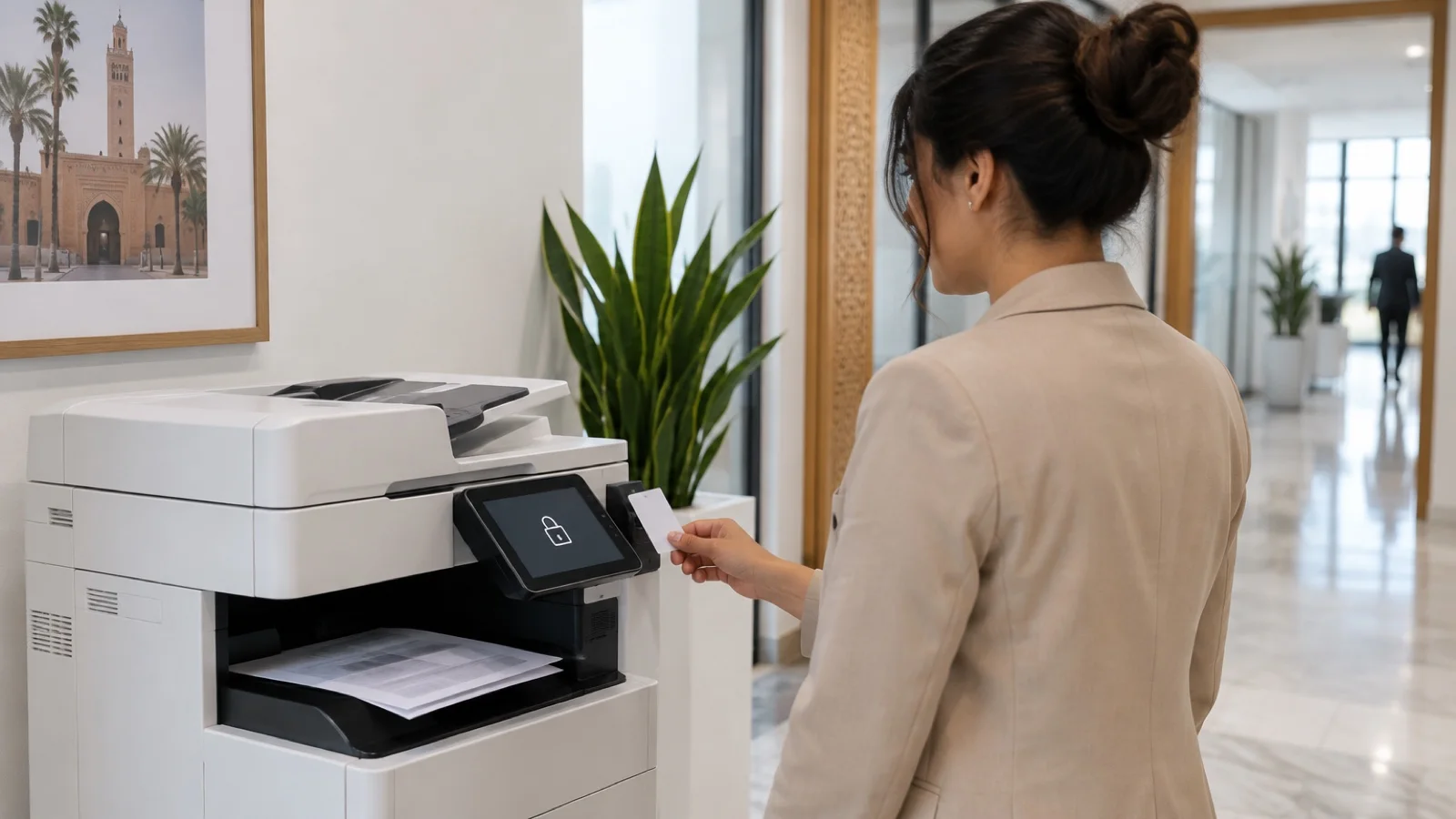
Badge or code release printing (follow-me, pull printing) solves the forgotten-paper problem: the job waits in a queue and only prints when the user identifies at the MFP. It is useful wherever sensitive documents circulate: HR, accounting, management, a clinic or firm reception desk. Print management solutions add traceability, who printed what and when, and can block printing of certain documents.
For small sites without badges, the “confidential print” feature with a PIN, available on most business models, already delivers much of the benefit.
Printers and Law 09-08
Payslips, scanned ID cards, prescriptions, customer files: what goes through an MFP is often personal data. Morocco’s Law 09-08 and the CNDP require appropriate security measures to protect it. A machine left open on the network, documents lying in the tray or a disk not wiped when it goes back to the lessor are all avoidable leaks.
The most common mistakes
- Leaving the factory password on the admin interface.
- Using a real user account, or even an admin account, for scan-to-email.
- Putting printers on the same network as servers, without filtering.
- Leaving the spooler running on domain controllers.
- Letting users install printer drivers themselves.
- Returning a leased machine without wiping its disk.
- Leaving printers out of the inventory and monitoring.
How we support businesses
We start with the free initial audit: inventory of printers and MFPs, firmware versions, open services, scan accounts, network placement and spooler configuration on servers. We then apply the hardening, isolate printers in a VLAN filtered by the firewall, as a Fortinet partner and WatchGuard partner, and deploy print queues through Group Policy or Intune as a Microsoft partner. We also supply suitable IT hardware and licences, with or without installation.
As part of our business cybersecurity services in Morocco, printers are included in inventory, patch management and 24/7 monitoring, and a critical incident is handled in under 15 minutes. Request your free initial audit: we reply within 24 business hours.
Frequently asked questions
Can a printer really be an entry point for an attacker?
Yes. A network MFP embeds an operating system, a web admin server and often a disk. If its admin password is the factory default or its firmware is out of date, an attacker already on the network can read documents, recover the email account used for scan-to-email, or use it as a foothold. On the Windows side, the Print Spooler service has had serious flaws, such as PrintNightmare in 2021.
Should the Print Spooler be disabled on servers?
On domain controllers and servers that do not print, yes. Microsoft recommends disabling the Print Spooler service on domain controllers and Active Directory admin systems, preferably through Group Policy, and more broadly on every server that does not need it. Keep the service only on the print server and on workstations.
What is badge release printing?
It is follow-me or pull printing: the document goes into a queue and only prints when the user identifies at the MFP with a badge or a code. Confidential documents no longer sit in the output tray for anyone to see, and the business knows who printed what.
What should be done with an MFP’s disk at the end of a lease?
Wipe it before the machine leaves your premises. Most business MFPs offer a secure erase function for internal storage; run it and ask the lessor or recycler for a certificate of erasure. NIST SP 800-88 is the reference publication for media sanitization.
Are printers covered by Morocco’s Law 09-08?
Indirectly. Documents printed, scanned or stored on an MFP often contain personal data about customers, patients or employees. Law 09-08 requires appropriate technical and organisational measures to protect that data: an open printer or an unwiped disk at recycling is a potential leak.
About the editorial team
ALLSAFE SOLUTIONS
Network, security and cloud engineers
Written by the engineering team at ALLSAFE SOLUTIONS, a managed IT provider founded in Casablanca by network, security and cloud engineers. Our articles draw on the projects we deliver for clients in Morocco and abroad.
LinkedIn