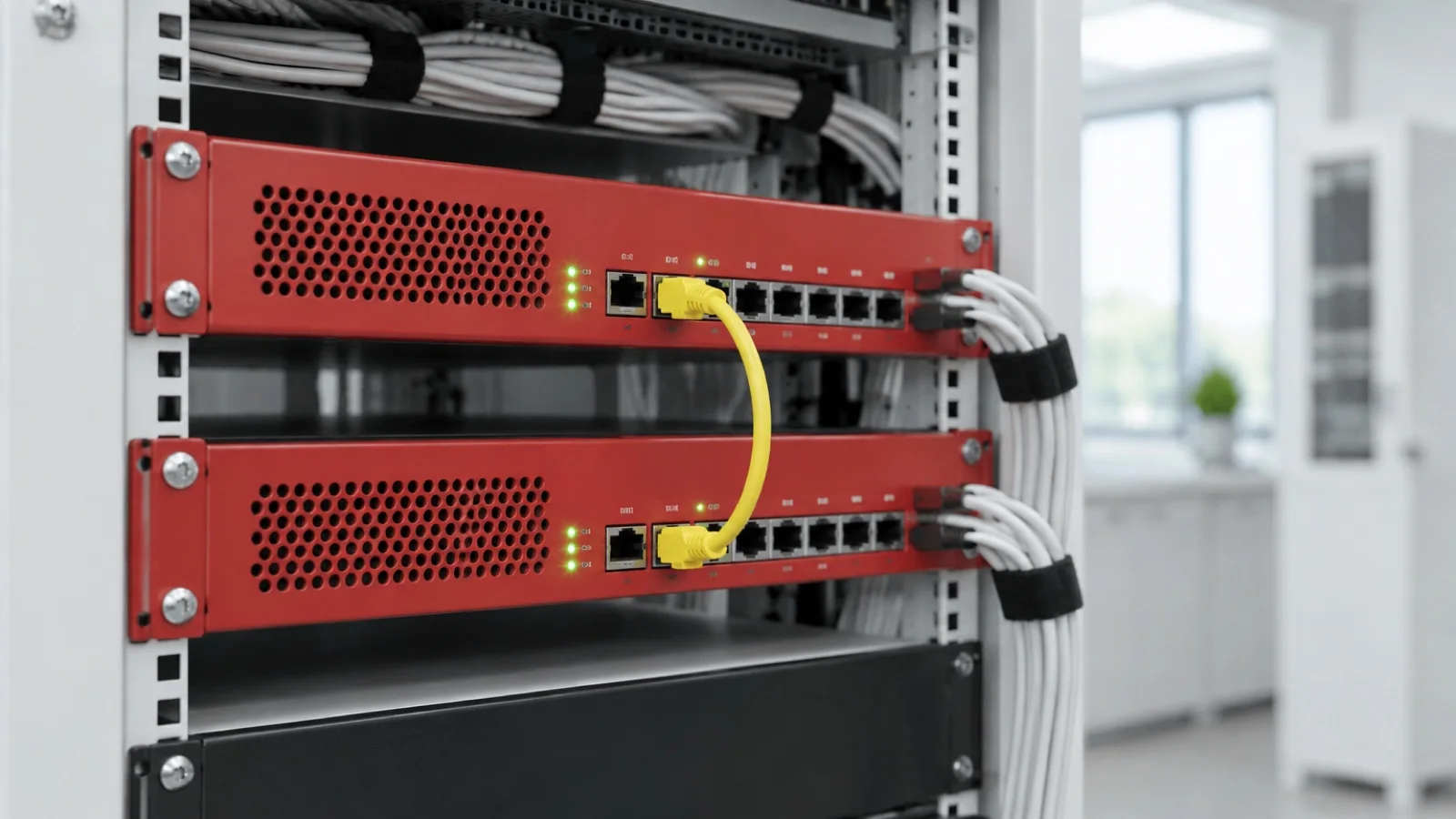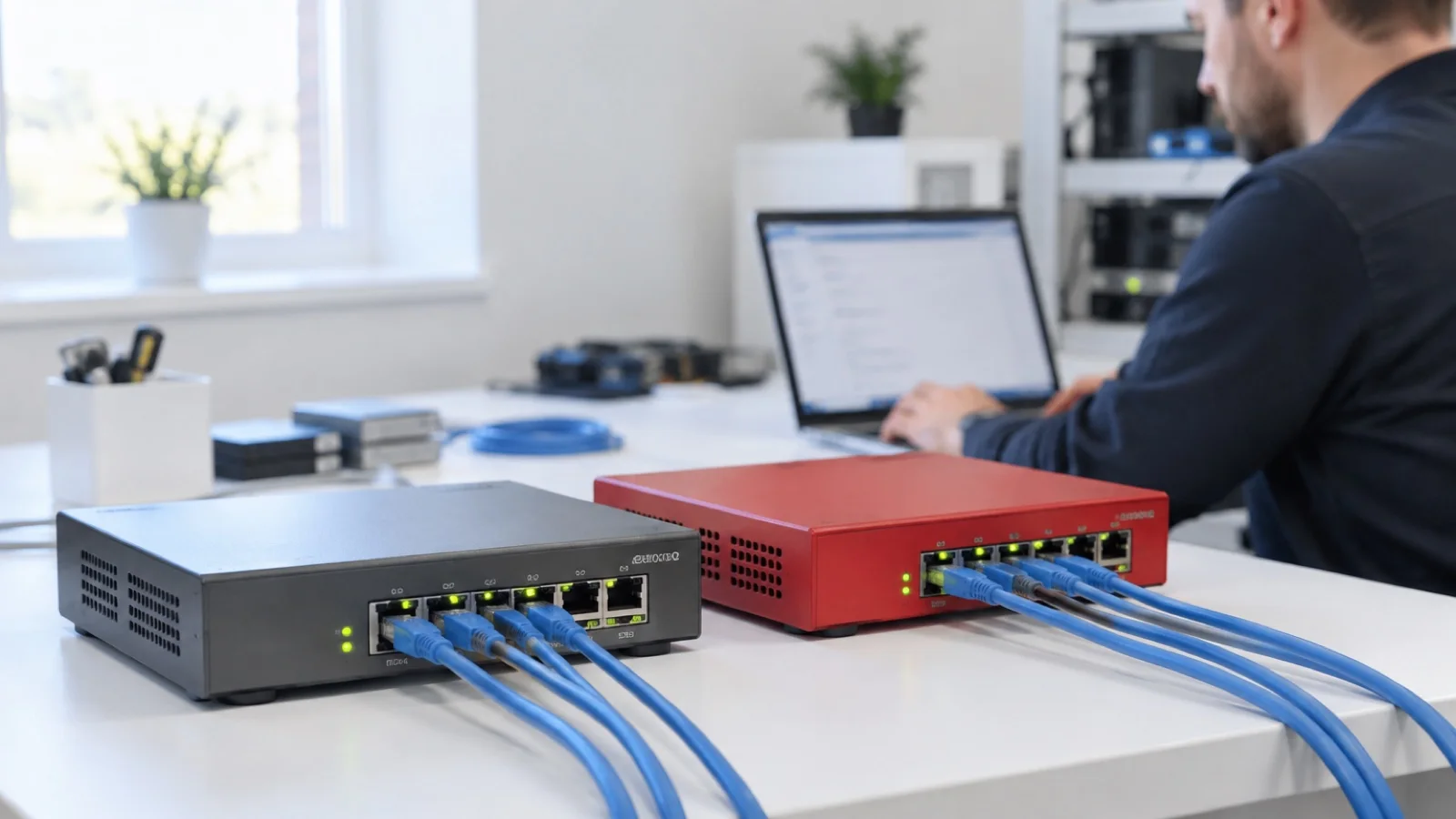








































FortiGate: the 10 security settings to enable right after installation
Admin access, firmware, SSL inspection, DNS filtering, geo-blocking, VLANs, VPN, logging: the 10 settings we apply to every FortiGate firewall.
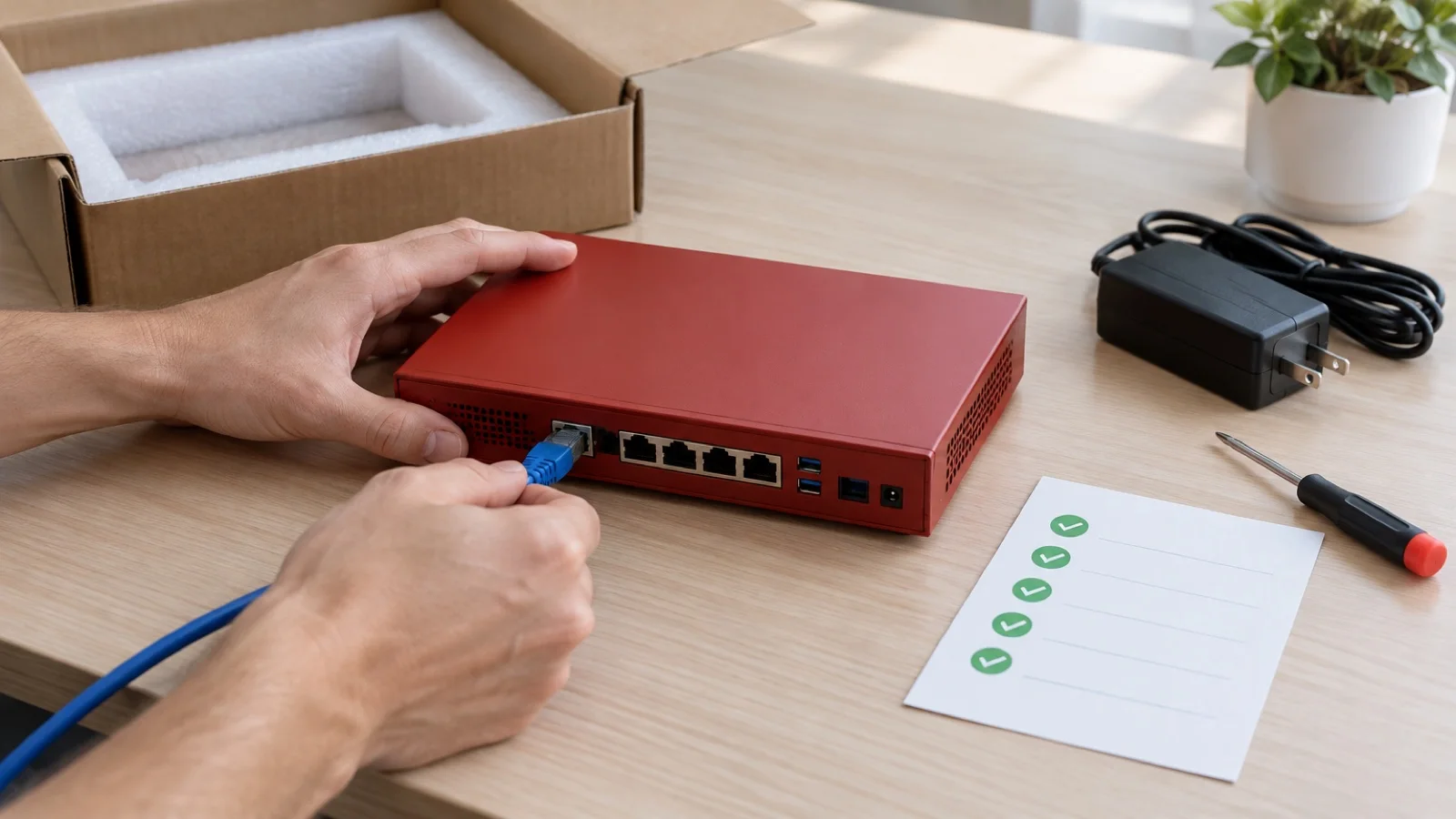
A FortiGate fresh out of the box passes traffic and blocks little. The appliance is powerful, the licences are paid for, but until the configuration is done, protection remains theoretical. It is what we see most often in our audits: well-sized firewalls, sometimes even properly licensed, whose protections are simply not applied to real traffic.
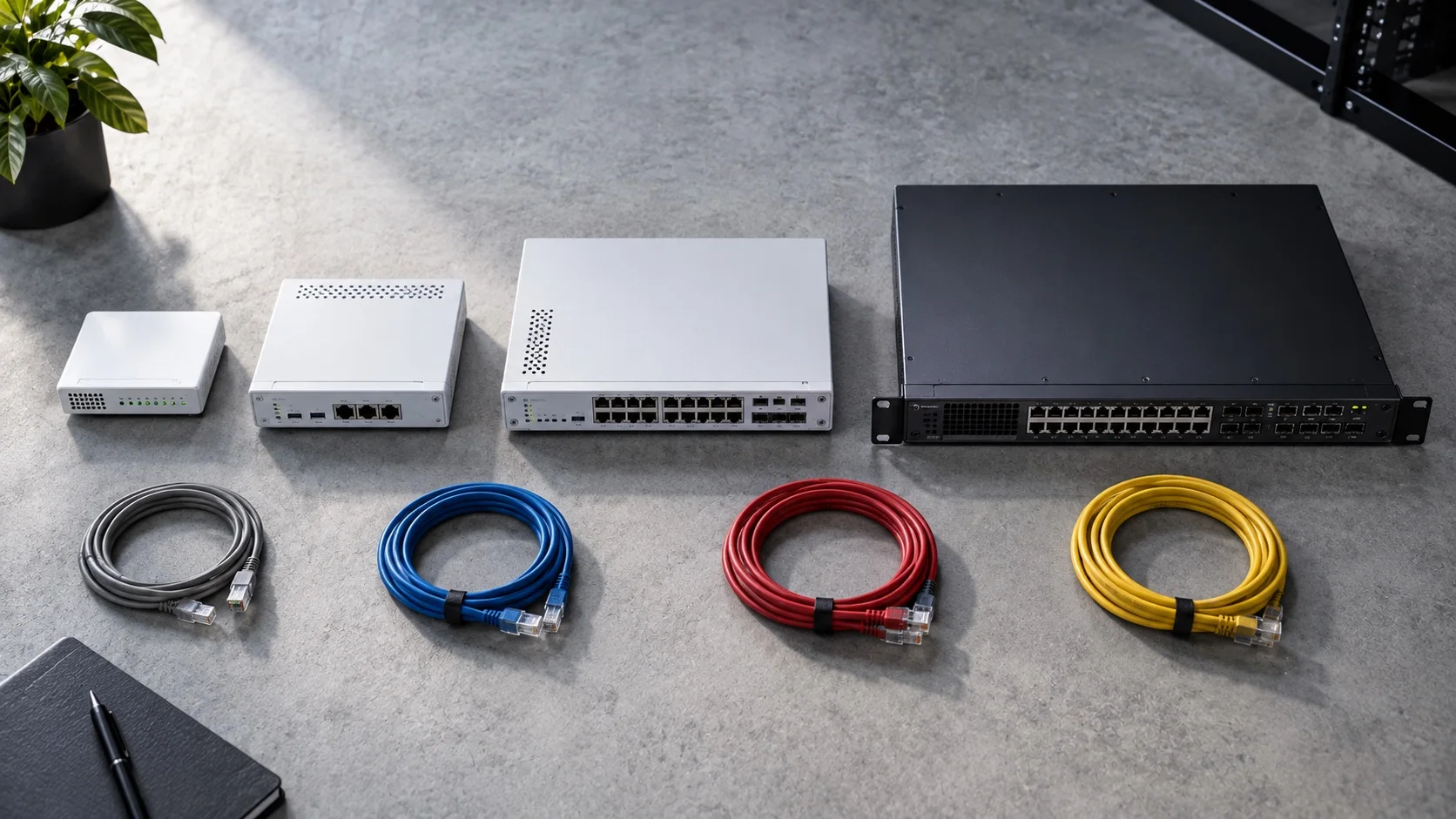
As a Fortinet partner since 2021, we apply the same checklist to every FortiGate before declaring it in production. Here are the ten settings it contains, in the order we apply them, why they matter, and the mistakes we fix most often at SMBs. If you have not chosen your appliance yet, start with our guide to choosing the right FortiGate model.
Why the order matters
You could enable these settings in any order, but experience shows it is better to protect the firewall itself first, before protecting what flows through it. An appliance with its admin interface exposed to the internet and old firmware can be compromised before the rules are even finished. Then comes traffic inspection, then network architecture, then everything that lets you respond to an incident: logs, backups and monitoring.
1. Secure administration
Rename the default admin account, enforce a long password, enable MFA with FortiToken, restrict the admin interface to internal networks or a VPN using trusted hosts, and close it entirely on the internet side. Also disable unnecessary management protocols such as HTTP or Telnet on every interface. A firewall manageable from anywhere is the first target of automated scans, and several critical vulnerabilities in recent years targeted exposed management interfaces.
2. Update the firmware, then plan ahead
Install the latest mature release of the branch Fortinet recommends, not necessarily the newest, then enable automatic FortiGuard signature updates. A FortiGate left on old firmware is exposed to public, mass-exploited vulnerabilities. Above all, plan what comes next: who follows Fortinet security advisories, and who schedules updates outside business hours, with a configuration backup just before.
3. Enable deep SSL inspection
Most web traffic is encrypted. In “certificate inspection” mode, the FortiGate only sees the name of the site visited: antivirus and content filtering see nothing of what is exchanged. Deploy the FortiGate certificate to endpoints by group policy or your device management tool, then switch to deep inspection, with exceptions for online banking, health and applications that refuse interception.
4. Attach security profiles to every outbound rule
Antivirus, web filtering, application control, IPS and DNS filtering must be attached to every rule towards the internet, not only the “default” one. A rule added later for a business application, with no profiles, is a hole. We check rule by rule, and we give each rule an explicit name so the policy is still readable a year from now.
5. Filter DNS
DNS filtering blocks malicious domains before the connection even starts, including for devices without an agent: printers, cameras, IP phones. It is one of the most cost-effective protections in the UTP bundle. For it to work, endpoints must actually use the resolver controlled by the FortiGate, so direct outbound DNS queries must be blocked.
6. Geo-block inbound
If your business receives no connections from certain countries, block them inbound: it sharply reduces the noise of automated intrusion attempts with no effect on your activity. VPN stays reachable from the countries your staff actually travel to. Geo-blocking does not replace the rest: it is a first-level filter, not sufficient protection on its own.
7. Segment the network
Endpoints, servers, telephony, cameras, guest WiFi and IoT in separate VLANs, with explicit rules between them and security profiles internally too. That is what stops a compromised laptop from reaching the servers or the backups, a principle detailed in Zero Trust for an SMB. For multi-site businesses, the same logic extends between branches, as explained in our FortiGate SD-WAN article.
8. Harden the VPN
VPN with MFA, strong encryption, and access limited to needed resources rather than the whole network. On recent FortiOS versions, Fortinet steers remote access towards IPsec rather than SSL VPN: check what your version offers before building remote access. Better still, ZTNA exposes no port and checks the device posture before each connection.
9. Enable logging and send it elsewhere
Log traffic and security events, shipped to FortiAnalyzer, FortiCloud or an external collector. A log kept only on the appliance disappears with it, and it is the first thing you need after an incident. Also define a retention period consistent with your obligations, such as Morocco’s law 09-08 on personal data or GDPR for European operations.
10. Back up the configuration and monitor
Encrypted configuration backup after every change, stored off the appliance, and monitoring of the device: availability, load, SD-WAN links, VPN tunnels, security alerts, licence expiry dates. An expired licence cuts the appliance off from protection updates, often without anyone noticing.
Bonus: what to disable
SIP ALG if you run IP telephony: it is a frequent cause of one-way audio and dropped calls, as we explain in IP telephony: 10 mistakes that ruin call quality. And the “any to any” rules added “temporarily” during troubleshooting, which almost always end up staying.
The ten settings at a glance
| Setting | Risk if missing | Quick check |
|---|---|---|
| Closed admin access and MFA | Firewall takeover | Does the admin interface answer from the internet? |
| Up-to-date firmware | Public vulnerabilities exploited | Version compared with Fortinet advisories |
| Deep SSL inspection | Threats hidden in encrypted traffic | Inspection mode of each profile |
| Profiles on every rule | Outbound rule with no filtering at all | “Profiles” column of the policy |
| DNS filtering | Malicious domains reachable | External DNS blocked from endpoints? |
| Inbound geo-blocking | Noise from automated attacks | Inbound rules by country |
| VLAN segmentation | Infected laptop spreading to servers | Can a laptop reach the backups? |
| Hardened VPN | Remote access with a password only | MFA active on every VPN account |
| Off-box logging | No trace after an incident | Logs present outside the appliance |
| Backup and monitoring | Blind rebuild, expired licence | Date of last backup, alerts received |
The mistakes we fix most often
- An admin interface open to the internet “so the provider can connect”.
- A single admin account shared by several people, with no MFA and no traceability.
- SSL inspection left in certificate mode because the certificate was never deployed to endpoints.
- Rules piled up over the years, with no name and no profile, that nobody can explain any more.
- One large flat network where endpoints, servers, cameras and guest WiFi all see each other.
- Licences expired for months, with frozen signatures.
- No recent configuration backup stored off the appliance.
Go-live checklist
- Default admin account renamed, MFA active, admin access closed from the internet.
- Firmware on a mature release, signatures up to date, next maintenance window scheduled.
- Certificate deployed to endpoints, deep inspection active, exceptions documented.
- Every rule towards the internet carries its security profiles.
- Direct outbound DNS queries blocked.
- Unneeded countries blocked inbound.
- VLANs in place with explicit rules between them.
- VPN with MFA and access limited to the resources needed.
- Logs shipped off the appliance, retention period defined.
- Configuration backed up, monitoring and licence alerts active.
How we do it
On a new FortiGate, we start from your real inventory: users, business applications, telephony, sites and remote workers. We prepare the configuration, validate it with you, then cut over outside business hours. On an existing firewall, we start with a review of these ten points, then fix them in order of risk, as we do when migrating from pfSense.
Once in production, the firewall is followed in our 24/7 monitoring console. Critical alerts are handled in under 15 minutes, and our clients under a managed services contract see most alerts dealt with by our team before they notice them. This work is part of our business cybersecurity offering, and you will find anonymised examples of these projects in our case studies.
If someone else installed your FortiGate, an audit will show what is missing. The initial audit is free: contact us and we will reply within 24 business hours.
Frequently asked questions
Is a FortiGate secure out of the box?
No: by default it passes allowed traffic without inspecting it in depth. Its value comes from configuration: security profiles, SSL inspection, segmentation, admin access closed from the internet and logs shipped off the appliance.
Why enable deep SSL inspection on a firewall?
Most web traffic is encrypted: without deep inspection, antivirus and web filtering only see the site name, not the content. Push the FortiGate certificate to endpoints by group policy, with exceptions for banking and health.
Should SIP ALG be disabled on a FortiGate?
Yes in most IP telephony setups: SIP ALG rewrites SIP messages and frequently causes one-way audio, dropped calls or phones that unregister. Modern systems such as 3CX handle NAT traversal themselves.
How can I check a FortiGate installed by another provider?
By reviewing these ten points on the live configuration: admin accounts, firmware version, profiles attached to rules, inspection mode, logs and backups. Our free initial audit covers this review and ends with a prioritised list of fixes.
About the editorial team
ALLSAFE SOLUTIONS
Network, security and cloud engineers
Written by the engineering team at ALLSAFE SOLUTIONS, a managed IT provider founded in Casablanca by network, security and cloud engineers. Our articles draw on the projects we deliver for clients in Morocco and abroad.
LinkedIn